Screen recorder for Windows
Record your screen with audio, share in seconds.
ATCapture is a lightweight screen recorder for Windows that captures your screen with microphone audio, then lets you share using short URLs and QR codes – all in one flow.
- Record full screen, window or region.
- Capture microphone narration for context.
- Share via short URLs & QR codes.
Only need still images? Use the screenshot tool for Windows instead.
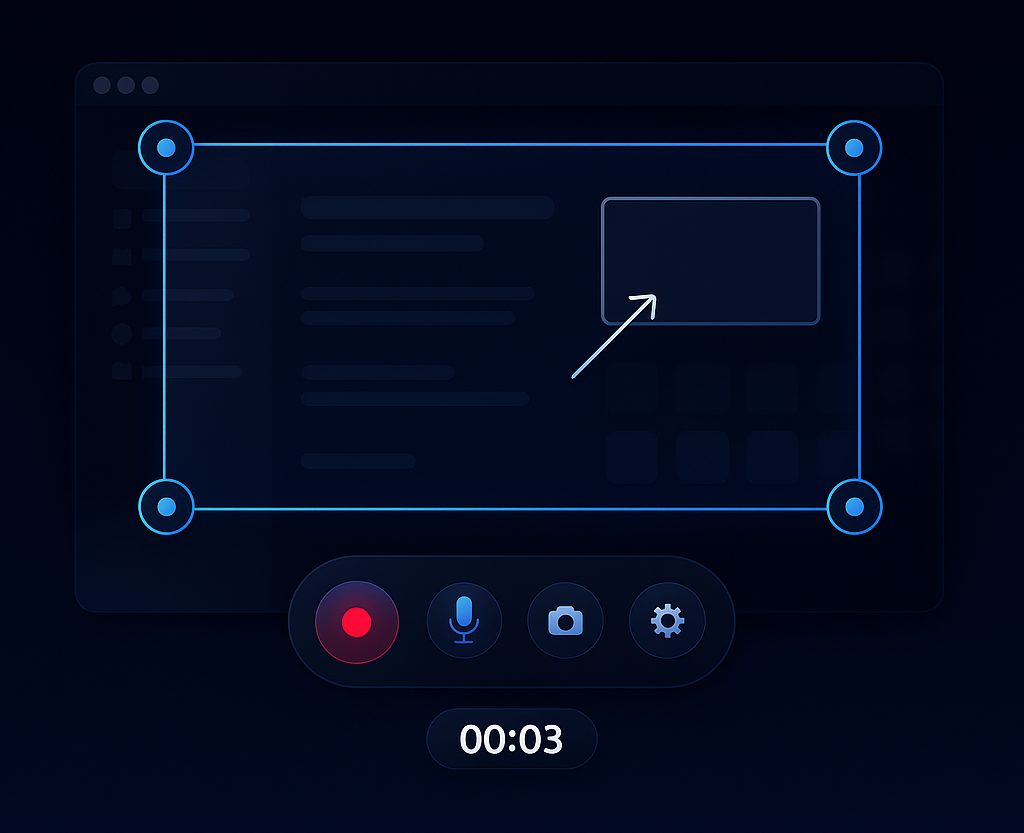
Choose exactly what you want to record
Record your whole desktop or just the important part of it – without exposing unrelated apps or notifications.
Mode 1
Full-screen recording
Capture an entire monitor or desktop. Ideal for walkthroughs, demos and training sessions where context matters.
- Show complete flows across multiple apps.
- Great for product demos and webinars.
Mode 2
Window recording
Focus on a single application window and keep everything else out of view.
- Cleaner videos for documentation and training.
- Protects your desktop and other apps from being visible.
Mode 3
Region recording
Record just a specific region of the screen – perfect for dashboards, specific UI areas or partial demos.
- Less visual noise for viewers.
- Smaller video size for faster sharing.
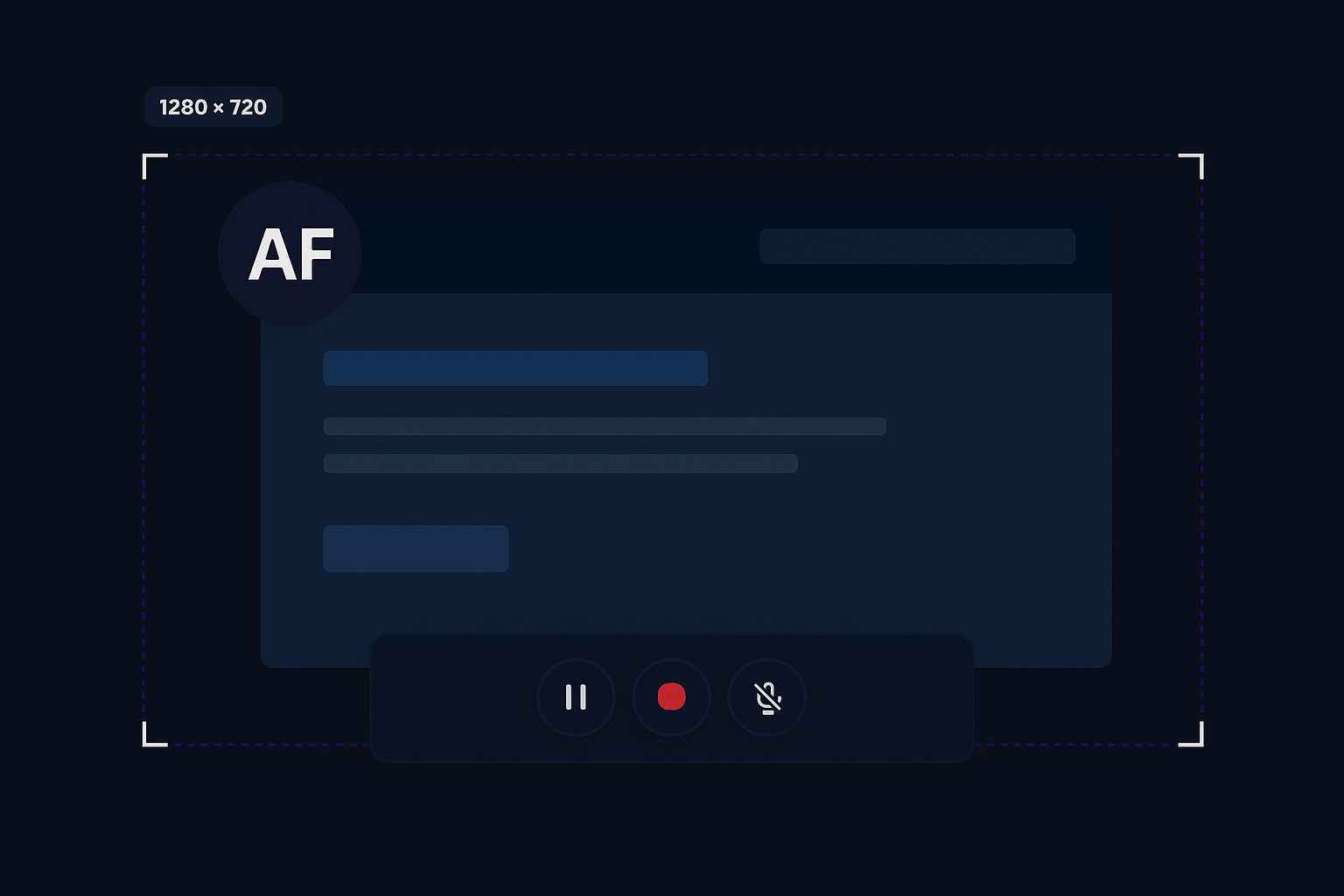
Screen + audio
Say it once, let people watch it whenever they need.
Screen recordings replace long messages and repetitive calls. Record once, then share a link so people can watch at their own pace.
- Record with microphone audio for narration.
- Use it for bug reproduction videos and feature demos.
- Perfect for training, onboarding and internal updates.
How screen recording works in ATCapture
From starting a recording to sharing a link in a few clicks.
Step 1
Start recording
Choose full screen, window or region, then click Record (or use a keyboard shortcut).
- Timer countdown to prepare.
- Recording bar stays out of your way.
Step 2
Walk through your flow
Show viewers exactly what to do or what went wrong, while explaining with voiceover.
- Focus on the task, not the tool.
- Pause or stop when you’re done.
Step 3
Share with a link
Once done, ATCapture makes it easy to save, copy or create a short URL and QR code for your recording.
- Use short URLs in tickets, chat and email.
- Use QR codes to share with audiences and mobile devices.
Animated mic level bars indicate clear voice recording while you capture the screen.
Voiceover
Explain with your voice, not just your cursor.
Your voice adds crucial context. ATCapture records your microphone alongside the screen so viewers hear every detail.
- Use built-in mic or any connected microphone.
- Check visual audio levels before and during recording.
- No watermark on your video in the free plan.
Where ATCapture screen recording shines
Anywhere you want to show “how” instead of writing long paragraphs.
Bug reports & QA
Show step-by-step how to reproduce a bug so developers can fix it faster.
- Highlight exact steps and UI states.
- Link recordings in Jira or GitHub issues.
Product demos & handoffs
Record short “what changed” videos whenever you ship a new feature or update.
- Share with product, marketing and stakeholders.
- Embed links in release notes and docs.
Training & onboarding
Create quick explainers for internal tools, processes and dashboards.
- Reuse recordings with new hires.
- Share via QR in slides and handouts.
Share anywhere
Short URLs and QR codes for your recordings.
Record once, then use the same link in tickets, chats, documentation and presentations – or let people scan a QR code.
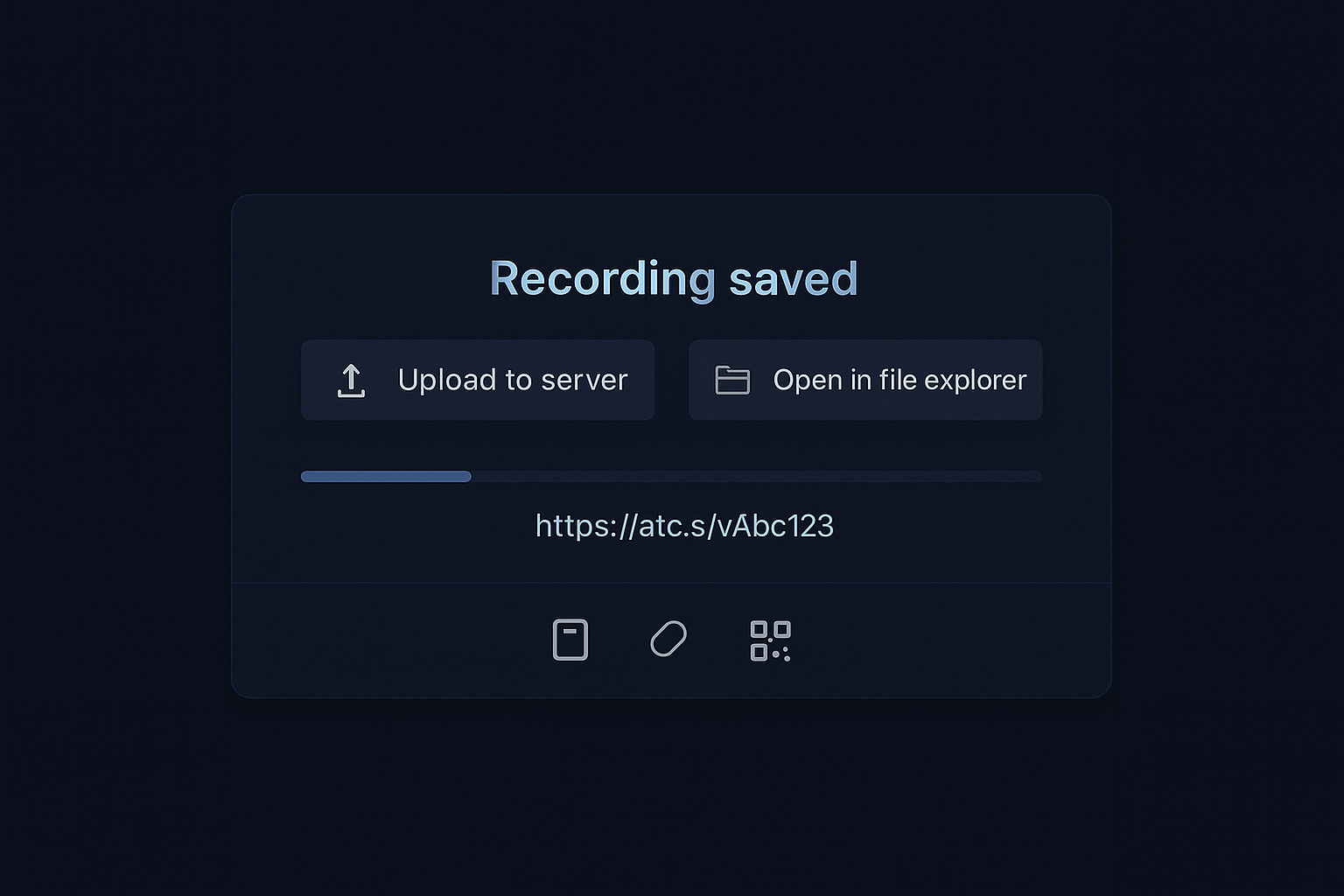
Screen recordings that replace meetings
Instead of scheduling calls, send short, focused screen recordings with ATCapture.
Bug reproduction videos
Show developers exactly how to reproduce an issue – from click to crash.
- Record only the relevant steps.
- Attach short URL in Jira or GitHub.
Feature demos & updates
Share what changed in your product in 2–3 minutes, instead of long emails or docs.
- Record window or full-screen.
- Add narration as you click through.
Training & onboarding
Build a library of short videos for new teammates, students or customers.
- Record once, share many times.
- Use QR codes in docs or slides.
See screen recording in action
Watch sample clips of ATCapture’s recording flow before installing.
Recording a bug repro
Walkthrough + call to action
How does ATCapture compare to other screen recorders?
Already using Loom, ShareX or another recording tool? See where ATCapture fits.
ATCapture vs Loom
Loom is great for cloud-hosted video messaging. ATCapture is better when you want local control, screenshots and QR tools built-in.
See Loom comparison →ATCapture vs ShareX
ShareX is powerful but complex. ATCapture focuses on simple, everyday recording with less setup.
See ShareX comparison →ATCapture vs screenshot-only tools
If you’ve outgrown screenshot-only tools like Lightshot and now need recording too, ATCapture gives you both in one app.
See Lightshot comparison →Record once, answer questions many times.
Download ATCapture and start using screen recordings for bug reports, demos, training and quick visual updates.