Screenshot capture
Pixel-perfect screenshots that explain your point in seconds.
ATCapture is a fast screenshot tool for Windows that lets you capture region, window or full screen, add basic annotations, and share via short URLs or QR codes.
- Region / window / full-screen capture.
- Basic annotations: arrows, boxes, text.
- Share with short URLs & QR codes.
Need video instead? Check out screen recording with audio.
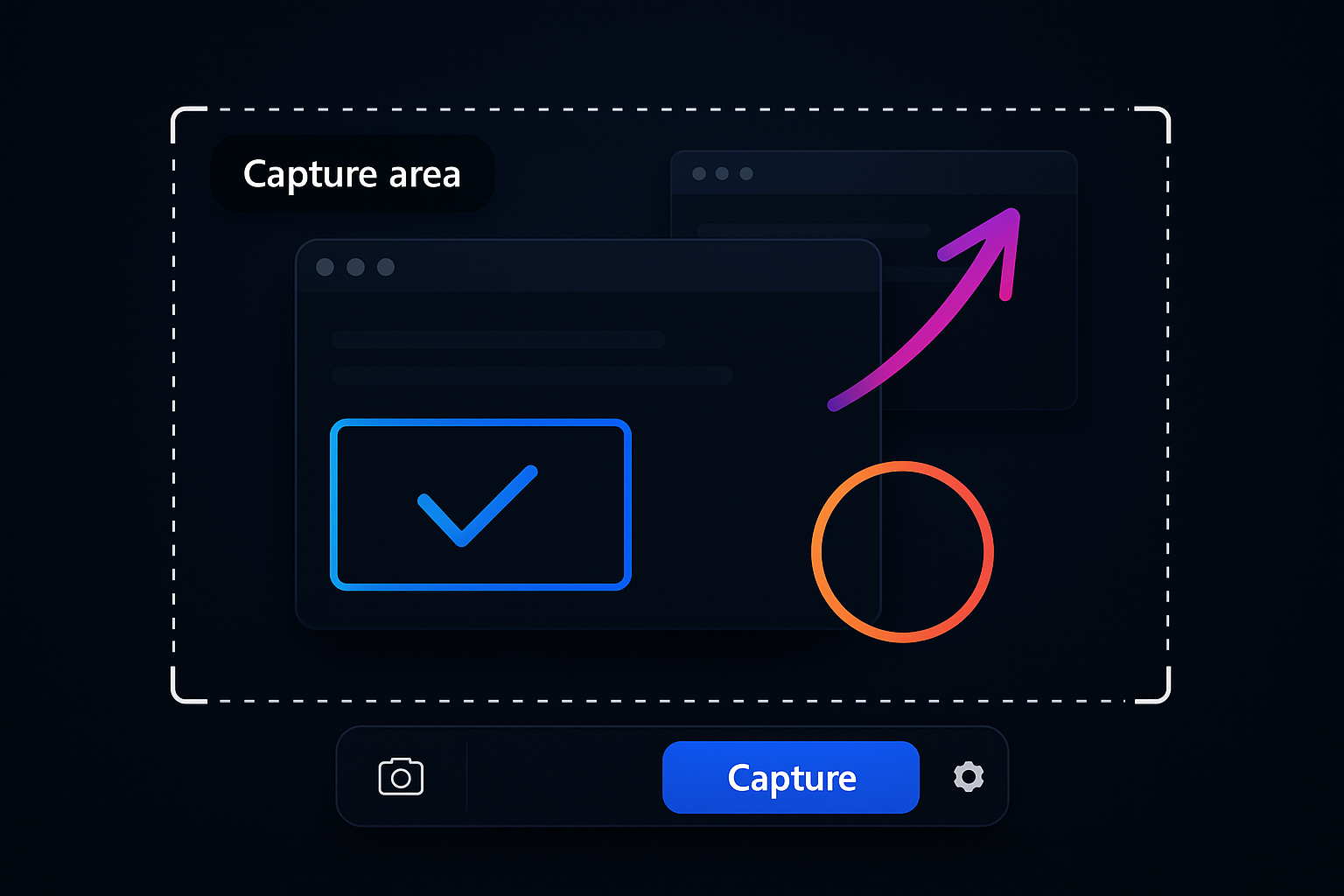
Three capture modes for any situation
From small UI pieces to full dashboards, ATCapture gives you the right capture mode for the job.
Mode 1
Region capture
Drag to select exactly the area you want. Ideal for UI components, dialog boxes and specific page sections.
- Highlight one specific element.
- Less cropping later.
- Great for visual bug reports.
Mode 2
Window capture
Capture any single application window cleanly – without background distractions or other apps.
- Perfect for product screenshots.
- Cleaner images for documentation.
- Works well with multi-monitor setups.
Mode 3
Full-screen capture
Grab your entire desktop in one go. Useful for complex flows, dashboards and system-wide overviews.
- See the full context of an issue.
- Great for before/after comparison.
- Ideal for support and training.
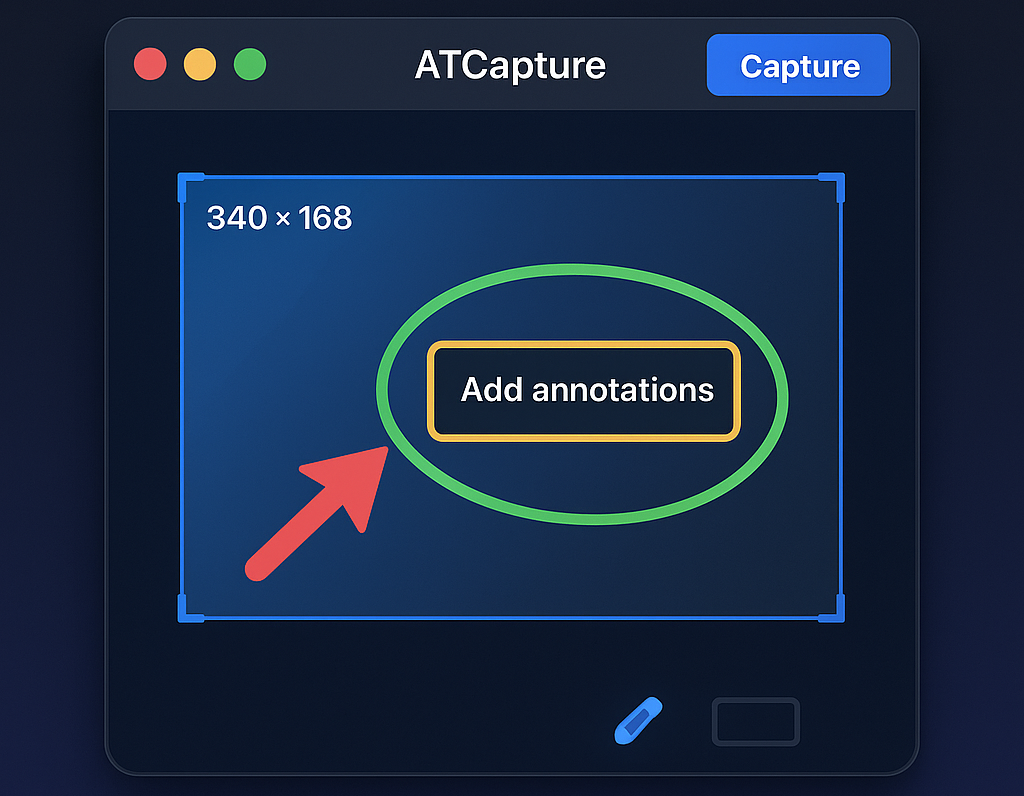
Basic annotations help you mark exactly what matters without overcomplicating things.
Annotate in seconds
Don’t just show the screen – point to what matters.
A raw screenshot forces people to guess. With ATCapture, you highlight, circle and label the important parts, so teammates understand at a glance.
- Draw rectangles around key UI or form fields.
- Use arrows to show directions or flows.
- Add short text labels so nobody misreads the image.
Want more? Future Pro versions can add blur, highlight, shapes and advanced editing.
How screenshot capturing works in ATCapture
From keyboard shortcut to shareable link in three smooth steps.
Step 1
Capture
Use a keyboard shortcut or click the Screenshot button in ATCapture.
- Choose region, window or full screen.
- Dimmed overlay for accurate selection.
Step 2
Annotate
Draw rectangles, arrows and text to highlight what matters.
- Keep annotations simple but clear.
- Adjust placement to avoid covering important UI.
Step 3
Share
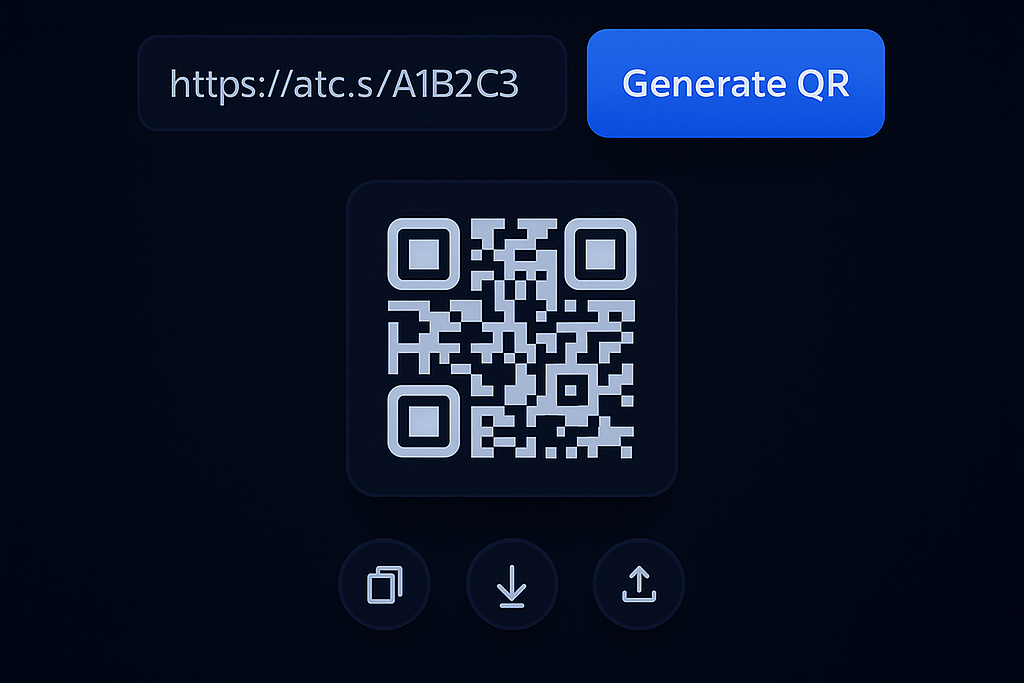
Save, copy to clipboard or instantly generate a short URL and QR code.
- Use short URLs in tickets and chat.
- Use QR codes in slides, docs and print.
You can combine this with short URL generation and QR code creation to build full screenshot-to-share workflows.
Sharing
Short URLs and QR codes built into your screenshot flow.
No more uploading images to different tools or pasting huge links. ATCapture handles capture, context and sharing in one place.
- Generate a short URL for every important screenshot.
- Create a QR code from the same link for mobile access.
- Reopen old captures from the dashboard and re-share instantly.
See screenshot capturing in action
Watch real preview clips of ATCapture’s screenshot flow before installing.
Overlay + selection
Annotate & share
Where ATCapture screenshots shine
Anywhere you need to explain something quickly, visually and clearly.
Bug reports & QA
Show developers exactly what’s wrong: highlight broken UI, error messages and unexpected behavior.
- Attach screenshots to Jira or GitHub issues.
- Combine with short recordings from ATCapture.
Product & design feedback
Capture specific UI sections, mark changes and send feedback that’s faster to read than long Slack messages.
- Mark layout issues or UX problems.
- Share via short URL in product docs.
Training & documentation
Build step-by-step guides with clear visuals: each screenshot shows exactly which button or menu to use.
- Great for onboarding guides.
- Combine with QR codes for mobile follow-up.
Make screenshots your team’s favourite language.
Install ATCapture and turn quick captures into clear explanations with annotations, short URLs and QR codes.